
Amazon EC2 instances often run into memory shortages, especially on smaller instances with limited RAM (like t2.micro or t3.small). When the available memory is exhausted, applications can crash, leading to downtime or data loss. This can be a major issue for running databases, web servers, or containerized applications.
By default, EC2 instances lack swap space, leaving no fallback when memory is exhausted. Without swap, the Linux kernel may invoke the OOM (Out of Memory) Killer, which forcefully terminates processes to free up memory — often killing critical services.
A solution to this problem is memory swapping, which allows the system to temporarily move less-used memory pages to disk storage, effectively expanding available memory. Let’s explore more about memory swapping, its benefits, and how to set up swap space on an EC2 instance.
What is Memory Swapping?
Memory swapping is a technique that allows the operating system to use disk space as an extension of RAM. When the system runs out of physical memory, it moves inactive memory pages from RAM to a designated swap space on the disk, freeing up RAM for active processes.
Swapping consists of two key operations:
- Swap-out: A technique for moving a process from RAM to the hard disk.
- Swap-in: A method of transferring a program from the hard disk to main memory (RAM).
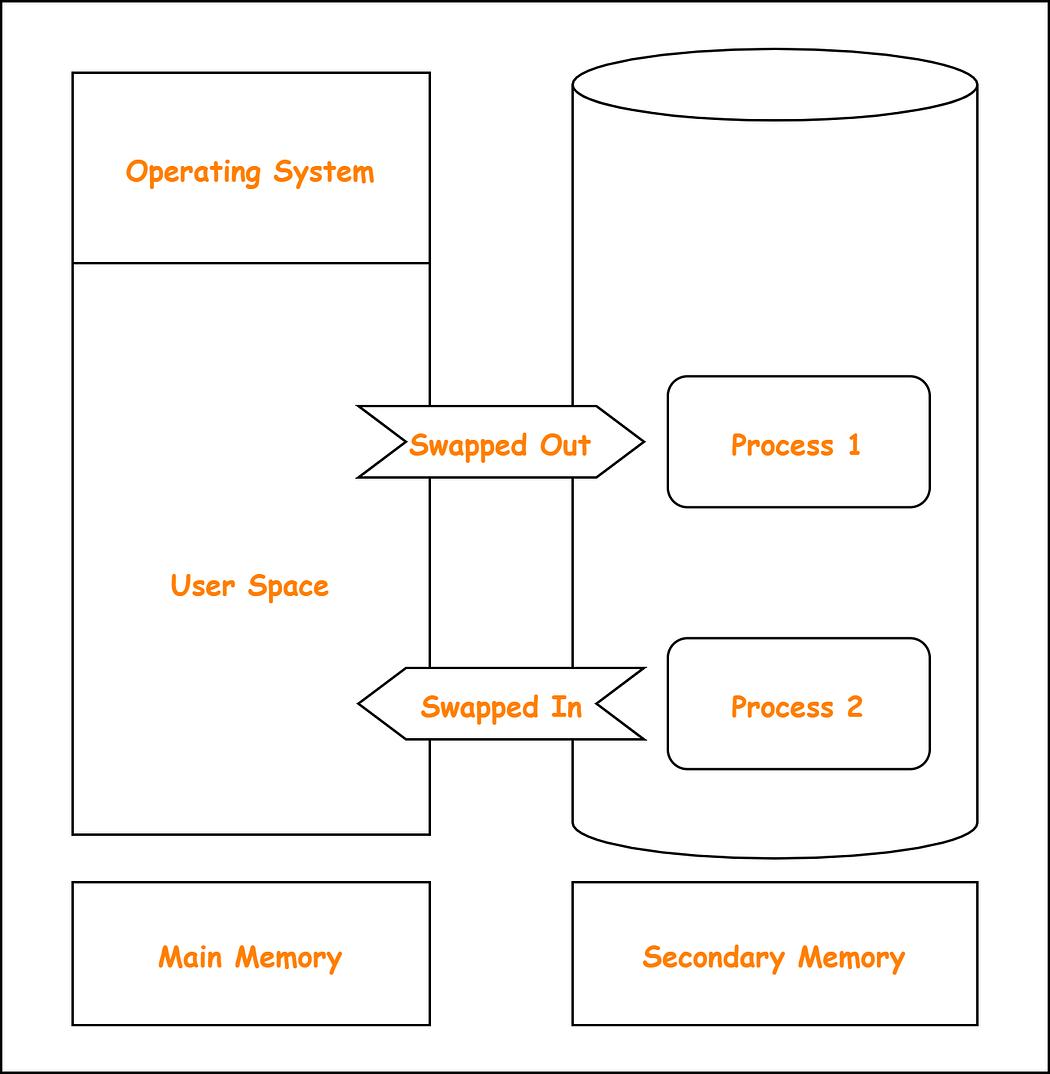
While swap space can help manage memory usage, it is much slower than physical RAM. However, it is still useful for preventing out-of-memory errors and keeping applications running smoothly.
Setting Up Swap Space on EC2
Follow these steps to create and enable a 1GB swap file on your EC2 instance.
1. Create a 1GB Swap File
sudo fallocate -l 1G /swapfile
This allocates a 1GB file named /swapfile. The fallocate command is efficient as it reserves space without writing actual data.
2. Set Correct Permissions
sudo chmod 600 /swapfile
This restricts access to the swap file for security reasons, ensuring only the root user can read and write to it.
3. Format the File as Swap Space
sudo mkswap /swapfile
This converts /swapfile into a valid swap space recognized by the system.
4. Enable the Swap File Immediately
sudo swapon /swapfile
This activates the swap file without requiring a reboot.
5. Make the Swap Permanent
echo '/swapfile none swap sw 0 0' | sudo tee -a /etc/fstab
This ensures the swap file is automatically enabled after a reboot by adding an entry to /etc/fstab.
How to Verify Swap is Active
To check if swap is active, use the following command:
free -h
or
swapon --show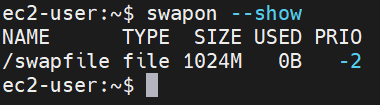
This will display total and used swap memory.
How to Remove Swap (If Needed)
If you no longer need swap space, disable and remove it with:
sudo swapoff /swapfile
sudo rm /swapfile
sudo sed -i '/swapfile/d' /etc/fstab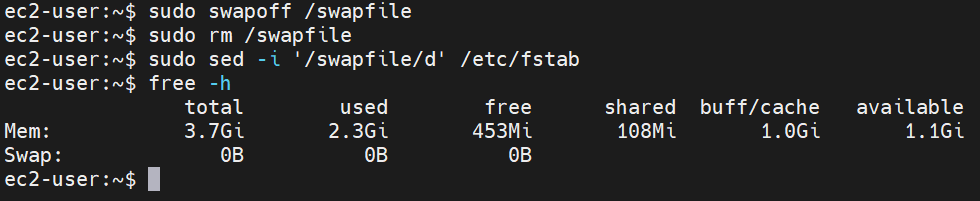
This ensures swap is removed and does not persist after a reboot.
Common Issues & Troubleshooting
1. Swap Not Activating on Reboot
If swap is not active after a reboot, verify the /etc/fstab entry is correct:
cat /etc/fstabMake sure the following line is present in the file:
/swapfile none swap sw 0 02. Disk Space Concerns
Since swap uses disk space, ensure you have enough free space on your instance’s root volume before creating a swap file.
3. Excessive Swapping (Slow Performance)
If the system is constantly swapping, it may indicate a need for a larger instance with more RAM. You can monitor swap usage with:
topIf swap usage is high, consider upgrading the instance type.
Performance Considerations
- Swap is slower than RAM: Since disk I/O is much slower than RAM, excessive swapping can degrade system performance.
- Use swap as a fallback: Swap should be used as a safety net, not as a replacement for sufficient RAM.
- Monitor system performance: Regularly check memory usage with
htoporvmstatto determine if swap is being overused.
Alternative Solutions
- Resize EC2 Instance: If your application consistently runs out of RAM, upgrading to a larger EC2 instance with more memory may be a better solution.
- Use AWS Elastic Memory: Some AWS services provide elastic memory management to scale RAM dynamically.
- Optimize Application Memory Usage: Review and optimize your application’s memory consumption before relying on swap.
Security Considerations
- Encrypt Swap File: If your instance handles sensitive data, consider encrypting swap to prevent data leakage:
sudo swapon --encrypt /swapfile- Avoid Swap for Critical Data: Since swap resides on disk, avoid using it for applications that handle highly sensitive information.
Conclusion
Running out of memory can be frustrating, but enabling swap space creates a backup plan for your EC2 instance when RAM runs low. It won’t replace RAM, but it helps prevent crashes and keeps things running smoothly. If you’re dealing with memory spikes, this simple tweak can save you a lot of headaches!
I hope you found this content informative and enjoyable. For more insightful blogs and updates, consider following and clicking the 👏 button below to show your support. Happy coding! 🚀
Thank you for reading! 💚